Reports
mReport produces four kinds of report. Each one needs a report configuration before it can compute.
| Report | Answers | Typical use |
|---|---|---|
| Work | Where did the hours on this project go? | Client billing, budget tracking |
| Project | Where does this project stand against its estimate? | Progress and budget against what was sold |
| Employee | Did this person work their expected hours? | Overtime and vacation balances |
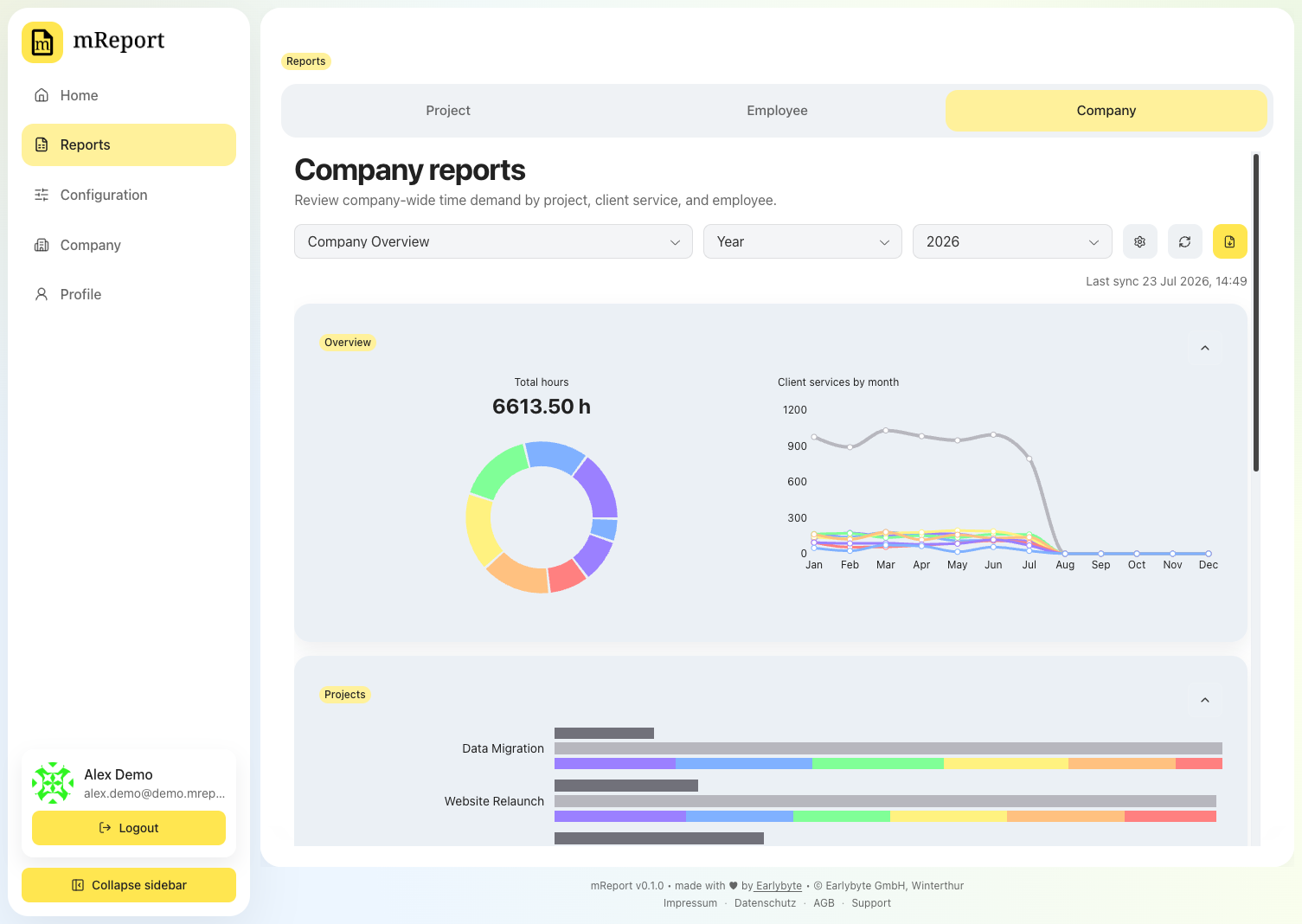
| Company | How is the whole company's time distributed? | Management overview |
Reading the charts
Hovering a pie slice, a bar segment or a point on a trend line shows the figure and, next to it, its share of the total. The total leads the list and states its own 100%, so it is always clear what the shares are measured against. An estimate shows no share — it is a target, not a part of the hours worked.
Trend charts label months as 09.26.
How a report computes
Opening a report shows the last computed result immediately — it never blocks on a fresh calculation. If that result is out of date, the report refreshes by itself: a banner shows while a background job fetches what is new from bexio and recalculates, and the page updates itself when the job finishes. You can navigate away and come back.
A report recalculates only when something it shows has changed — its configuration, or the time entries it reads. A sync that brings nothing new for a report leaves it as it is.
Last sync, shown on every report, is when time entries were last fetched from bexio for the whole workspace — not when that report was last calculated.
If a refresh does not finish, the report keeps its previous figures and says so in a line above them. It tries once more by itself; after that, use the sync button on the page.
Colors
Every chart color is configurable and documented in the chart colors.