Company report
Answers how is the whole company's time distributed — across projects, client services and people.
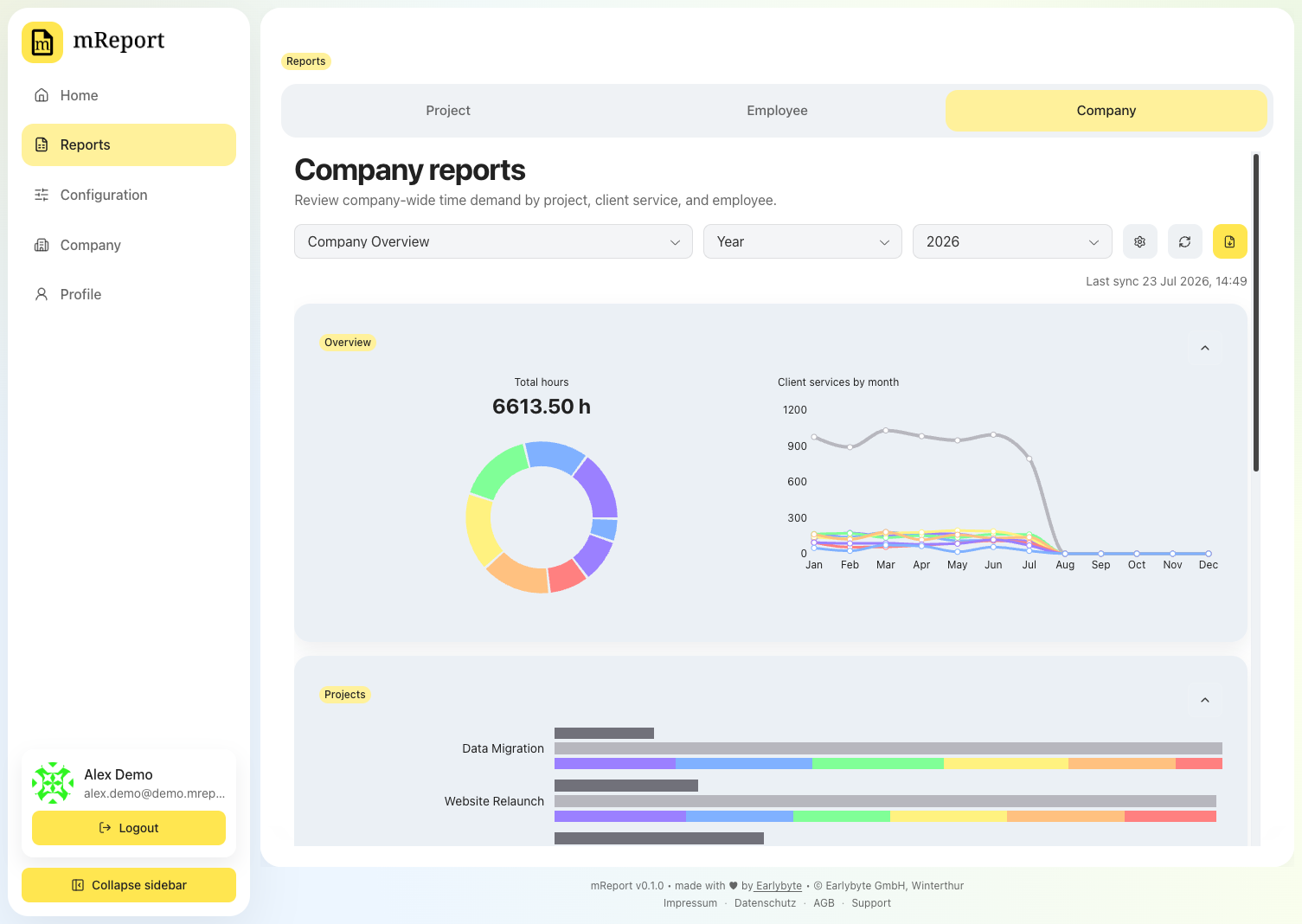
Periods
Year, quarter or month. Every figure covers the period you pick; the monthly trend beside the overview covers half a year more and shades the period inside it, so you see it against what came before. A single month is marked with a green line.
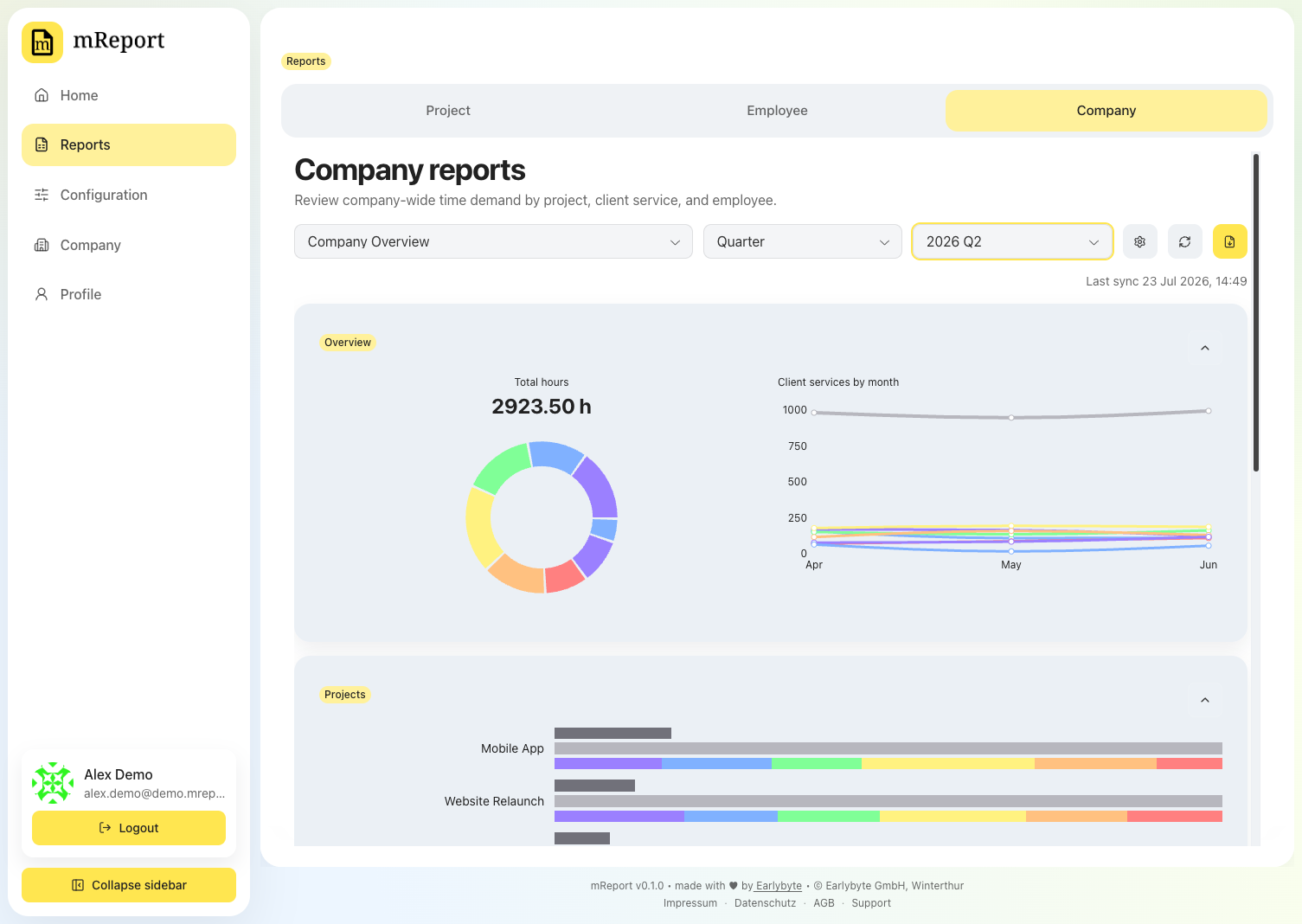
Per project
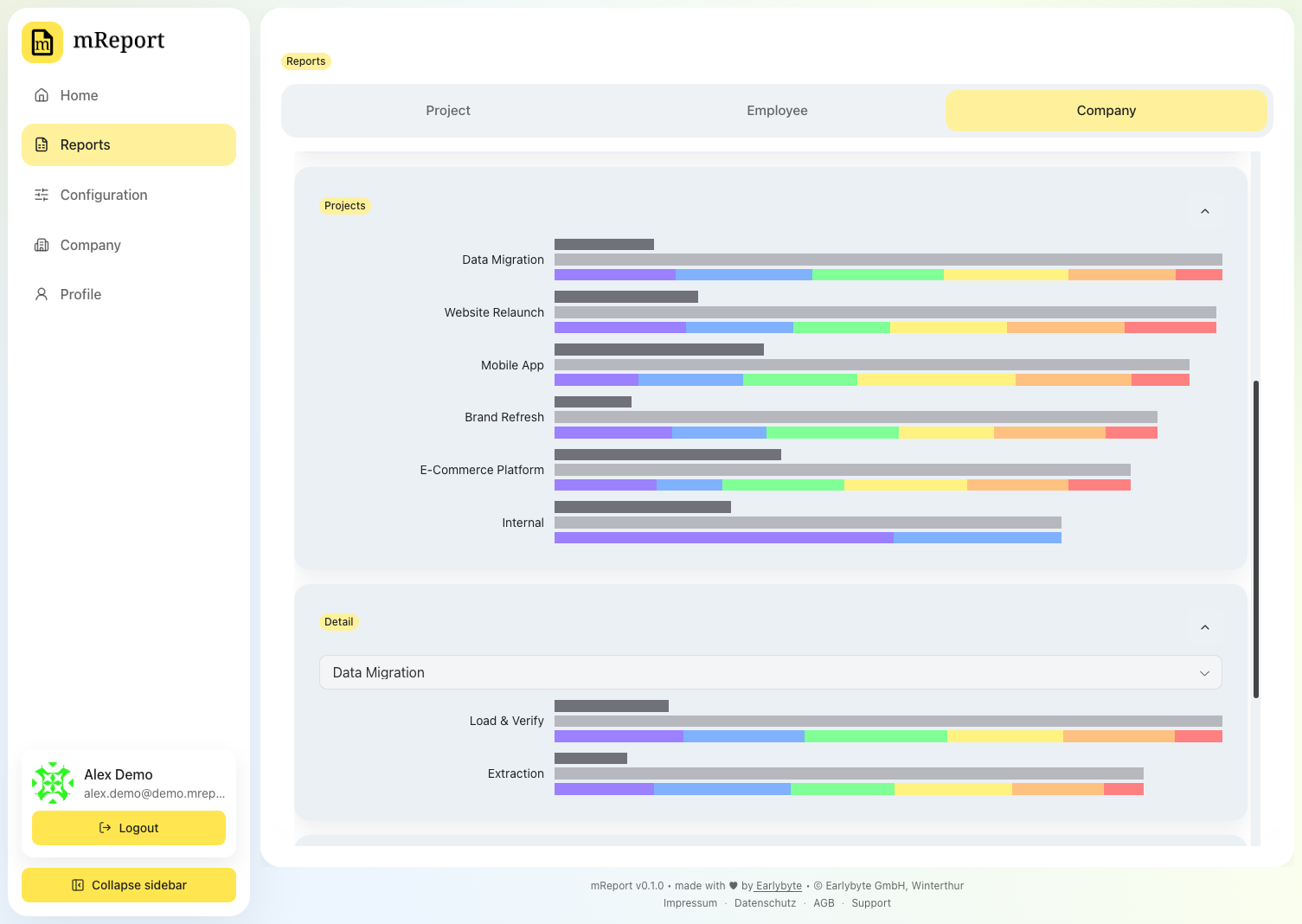
Project detail
Pick one of the report's projects to see how that project's hours split — across its work packages and across client services — followed by the hours per work package with each package's estimate beside it.
Per employee
The per-employee breakdown is optional — enable it in the company report configuration if you want it in the dashboard and the PDF.
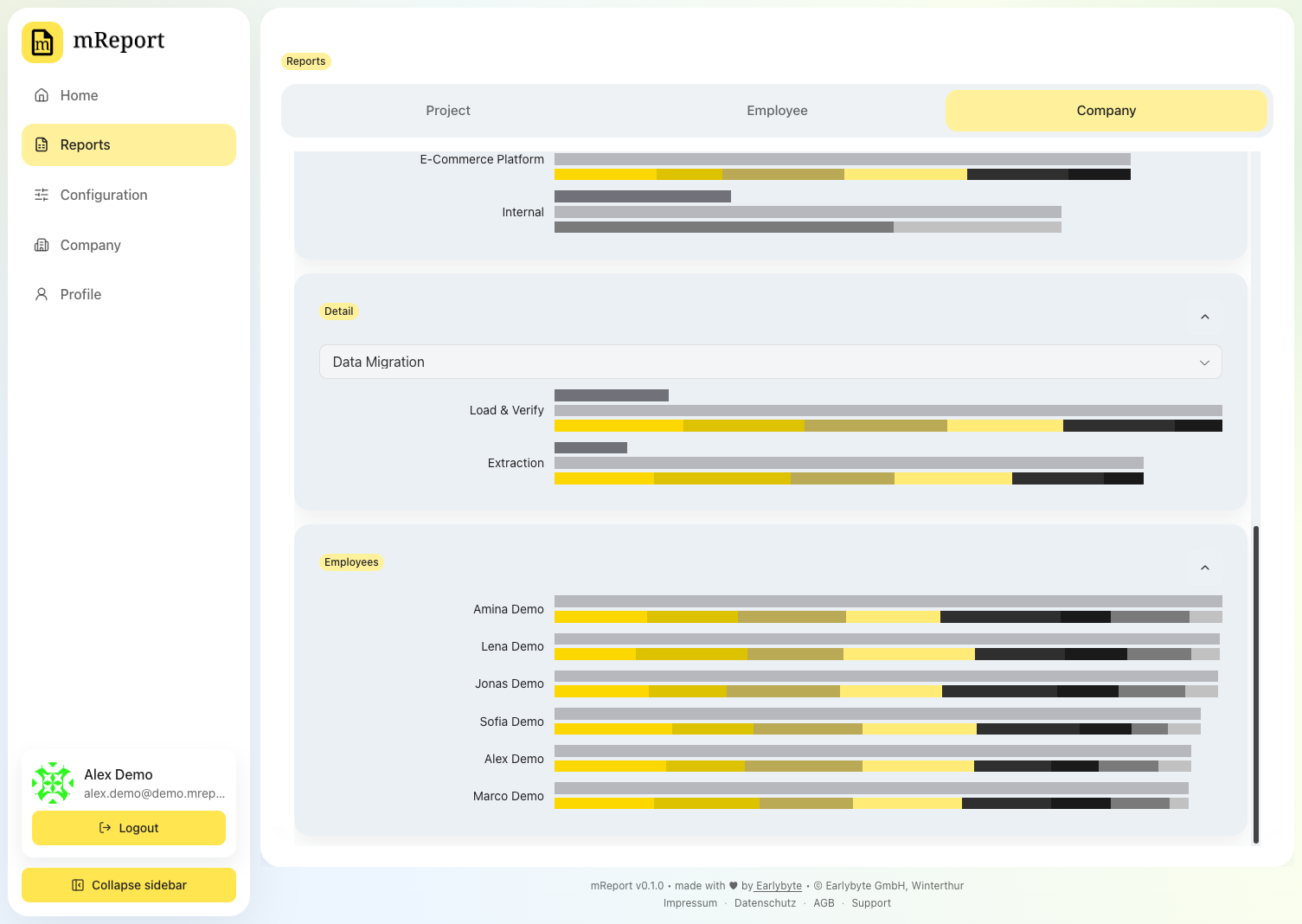
Employee detail
Pick one person to see how their hours split across client services and across projects. It uses the same period and filters as the rest of the dashboard, and appears only when the per-employee breakdown is enabled.
Export as PDF
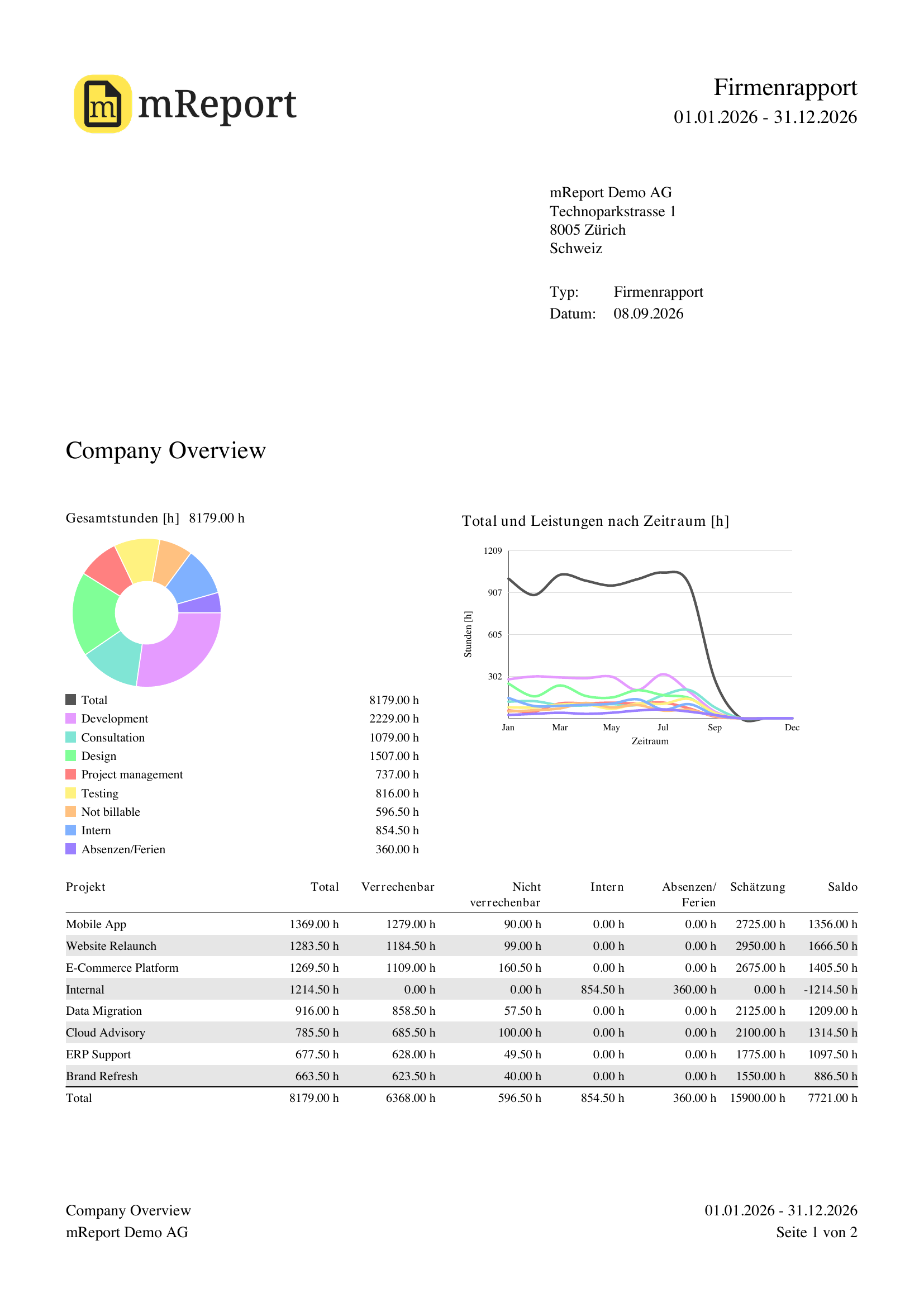
The PDF prints the company's hours for the selected period — the totals, the split by client service, and the per-project rows — plus the employee and customer breakdowns when the configuration switches them on. It is read inside your own company, so it reserves no address field and names the company profile as sender.
Look before you spend an export
The eye beside the export button opens the same report as a preview: the real document at the real layout, with an outlined box where your logo goes. It opens in a window rather than downloading, and it does not count against your plan's monthly PDF allowance. The export carries your logo.
Changing what you see
| You want to | Go to |
|---|---|
| Change the chart colors | Chart colors |
| Change a client service's color slot or billable flag | Client services |
| Change which client services count, the breakdowns or the estimate lines | Company report configuration |
| Add a disclaimer to the export | Disclaimers |
| Change the sender block on the PDF | Company profile |